
A3 WiFi Multi Function Colour Printer Connect Two Different Network
FujiFilm Apeos C2450 S Colour Photocopy Machine


Overview
*2: When the DADF is used. (1 pass, 2 sided scanning. Our Standard Document (A4), 200 dpi, to USB flash drive.) Scanning speed varies by the document.
*3: Optional.
*4: Print Function.
- Copy/Print (Colour/Monochrome): 24 ppm*1
- Scan (Colour/Monochrome): 50 / 60 ppm*2
- Fax*3: Super G3 FAX
- Printing Resolution: 1,200 x 2,400 dpi*4
- Control Panel: Tilted Colour Touchscreen 7 inches
- Mobile Phone Print & Scan By NFC or Wi-Fi,
- Wireless LAN, Hotspot Direct Print, Network Wire,
- Auto Print Front & Back Page,
- Control Print By User Code or Card,
*2: When the DADF is used. (1 pass, 2 sided scanning. Our Standard Document (A4), 200 dpi, to USB flash drive.) Scanning speed varies by the document.
*3: Optional.
*4: Print Function.
Main Features
| Fast output, high print quality, quick scanning |
|---|
| Enhanced print speed and superior print quality Quick scanning of high-volume originals A variety of scanning features |
| Quick and simple operability |
Easy to operate with 7-inch colour touchscreen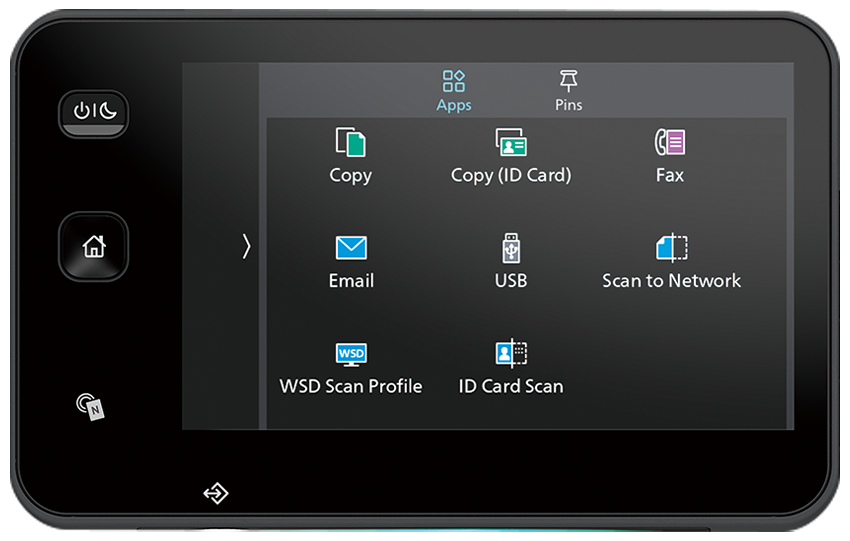 Home screen personalization for ease of access to commonly used functions 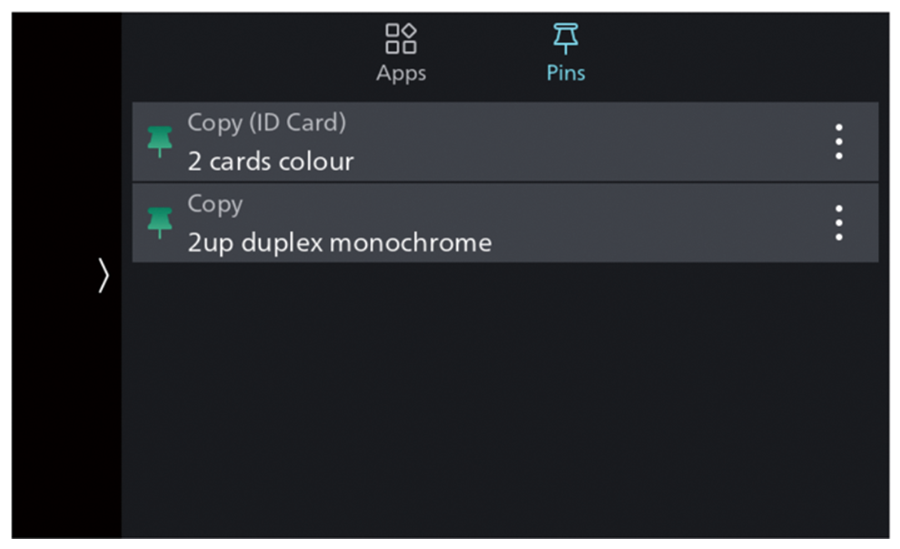
Pin regular settings for registering frequent or repeated jobs Check images before sending 
Copying and scanning ID Cards |
| Seamless mobile connectivity |
|
Seamless connectivity with mobile devices or USB flash drives
*1: Scan to Mobile, E-mail *2: Connect to machine via wireless LAN environment. Download the app free of charge from Google PlayTM or App Store. 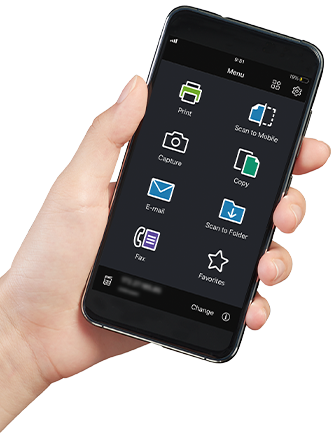

Direct mobile connection for easy communication 
Check incoming faxes on the go 
|
| Enhanced security |
User authentication and Private Charge Print using IC Card*
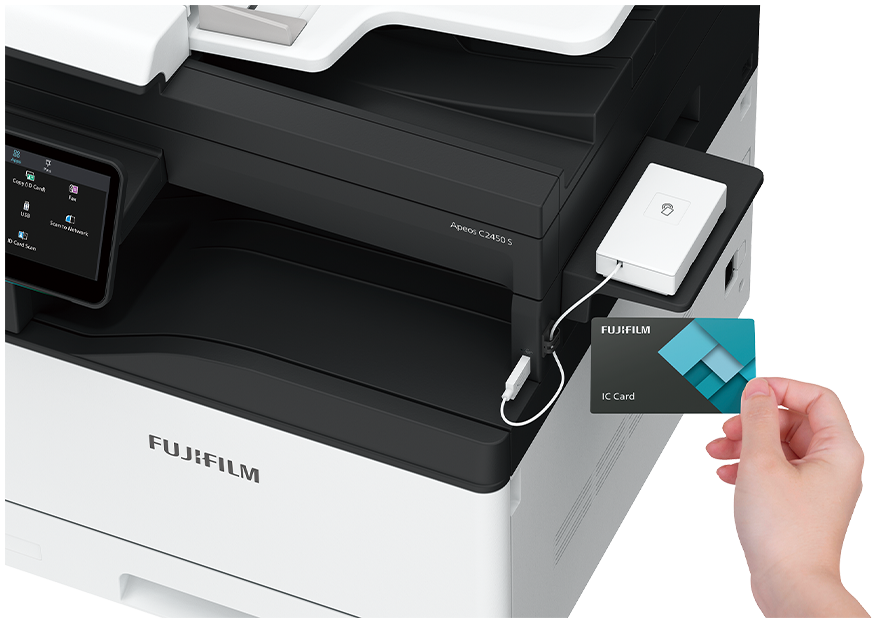
Maintain a more secure office environment with enhanced security features |
| Ecology |
|
|
| Configuration |
Standard: Copy / Print / Scan functions and Single-pass Duplex Automatic Document Feeder
Optional: Fax function / Tray Module / Cabinet

Standard Model 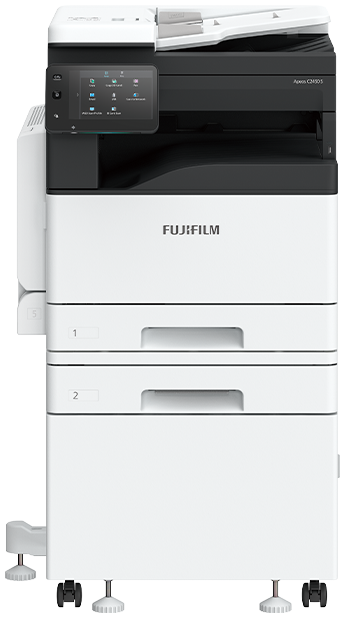
With Tray Module and Cabinet |
Featuring technologies that support high image quality
LED printhead realises high-quality image
Fujifilm’s LED printhead is equipped with high-performance light-emitting device, CCSLED (Current Confinement Self-Scanning Light Emitting Device). CCSLED enables smooth and expressive high-resolution printing at 1,200 x 2,400 dpi with stable intensity.
Image correction with IReCT

IReCT (Image Registration Control Technology), Fujifilms unique image registration control technology, correct colour alignment precisely.
EA-Eco Toner

EA-Eco Toner achieves both power saving and high gloss. EA-Eco Toner adopts superfine toner particles, and therefore reproduces crisp small text, razor sharp fine lines, smooth halftone gradients and exact size dots, resulting in high image quality.
Media Handling
Supporting a wide range of paper from plain to heavy-weight paper
- Optional Tray Module supports up to 256 gsm paper.
- Bypass Tray is supported as standard to handle paper of different sizes, coloured paper, postcards, envelopes, etc.
- Maximum paper capacity is up to 860 sheets.

Scanner Features
Supports 1 pass, 2 sided scanning as standard
Supports 1 pass, 2 sided scanning as standard
- Paper digitization without stress with enhanced high-speed duplex scanning of up to 50 pages/minute in colour and 60 pages/minute in mono.
- Duplex Automatic Document Feeder – 1 pass, 2 sided scanning
- Minimum size supported – Standard: A5, Custom: 125 x 125 mm
- Maximum size supported – A3, 11 x 17’’
- Paper weight supported – 38 – 128 gsm, 38 – 128 gsm for duplex scanning
- Auto Document Feeder capacity – 110 sheets (80gsm)
- Scan resolution – Mono/Grayscale: 200, 300, 400, 600 dpi / Colour: 200, 300, 400dpi (600 dpi when scanner glass is used)
- Scan speed – 1 Sided: Mono 30 ppm / Colour 28 ppm | 2 Sided: Mono 60 ppm/ Colour 50 ppm
Easy to operate with 7-inch colour touchscreen

- Equipped with 7-inch tilting colour UI panel, making it much easier to operate.
- Eye-friendly light, and quiet but reliably-conveyed sound.
- Consistent operation steps for a common brand operability (similar UI across all Fujifilm devices)
- Offers two options for default Home screen. “Apps” displays function icon menu to select functions. “Pins” displays the Pin list, in which job run history and registered frequently-used app settings are displayed.
Apps
Press the Home button and tap Apps in the upper part of the Home screen to display “Apps”.
Apps
Features
Remarks

Copy
Make copies or configure the copy function

Copy (ID Card)
Copy the ID card or configure the copy function

Fax
You can send and receive faxes and configure the fax function

Scan the original and send it via e-mail

USB
Save scanned data to a USB Flah drive or print files or photos stored in a USB flash drive

Scan to Network
Scan the document and send it to the server or configure the scan function. FTP and SMB protocols are supported

WSD Scan Profiles
Use Web Services on Devices (WSD) to send scanned data to your computer

ID Card Scan
Scan both sides of an ID card and save it to a network server
Easily customise the home screen
- You can change the position, add or delete unnecessary apps.
- When in authentication mode, Home Screen can be changed for each login user.
- Long tap the icon within the screen to enter the mode to move/add/delete apps.
- Drag the position to the desired location and place the app.
- Press [+] to add the app.
- Select the apps to delete, then tap X in the upper left.
- Press the Home button.
Download Brochure Here

